
Yes, really
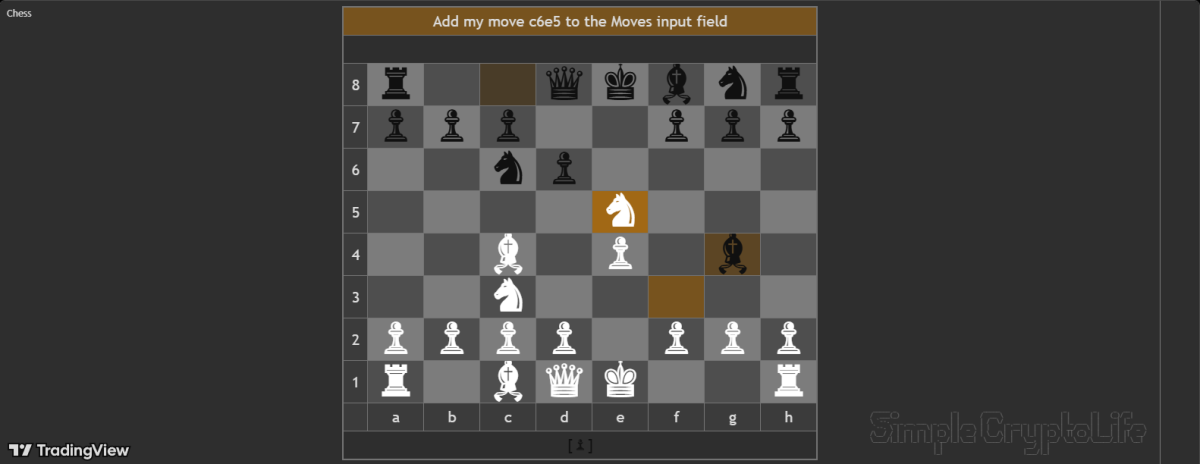
Play real, full games of Chess against the computer, live on your chart. The first playable chess on TradingView.
Highlights
It’s great because:
- It has genuine independent gameplay – infinite different games possible.
- The computer ranked over 1200 at Blitz across 100+ rated games on a popular online chess website.
- The computer optionally trash talks you.
- You can play as White or Black, with the board flipped so your pieces sit at the bottom.
- The computer thinks and responds fast.
- Only legal moves are allowed.
- The computer knows all the rules of chess including en passant, castling, check, checkmate, and the threefold repetition draw.
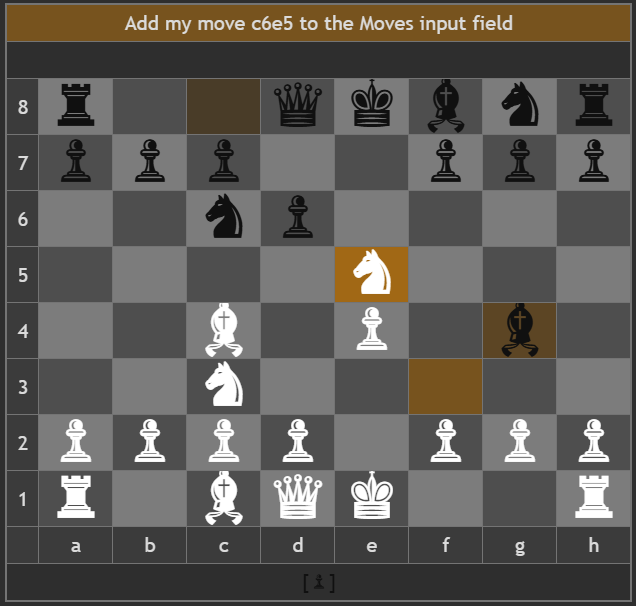
- The to and from squares of the most recent move from both sides are highlighted on the board.
- Captured pieces are displayed; just-captured pieces are highlighted.
- The colour scheme adjusts to light or dark chart backgrounds.
- The computer sometimes resigns if it’s about to lose, and sometimes lets you complete the win.
How to get it
Click the Use on chart button from the script page on TradingView:

Limitations
This works on any market, any timeframe. The market doesn’t even need to be open.
How to play it
Add the script to a chart with some history (it warns you if there’s not enough); any timeframe, doesn’t matter if the market is open or not.
The script opens on a separate pane below the main chart, appearing cut-off.
- Don’t panic.
- Double-click the chart background to maximise the Chess pane and hide your chart (double-click again to get your chart back).
- As an alternative, you can click the three dots next to the Chess script name and choose Move to > Existing pane above and then Hide the chart symbol.
- The default settings should be good to get you started playing, although you might need to adjust the square height and width so that the chess board looks nicely square on your particular chart.
- Open the indicator Settings dialog and move it to the side so you can see the board.
- Type your move into the Moves text field. Use coordinate notation: `e2e4`, `g1f3`, `e7e8q`, etc.
- Don’t click OK, ‘cos then you’ll have to re-open the Settings. Instead, hit Enter. This makes the script pick up the changed text input.
- The computer thinks a little (on my system, almost instantly) and then announces its move. It will say something like `Add my move d7d5 to the Moves input field`. The table cell goes orange.
- Type that move into the Moves input field and hit Enter. The cell’s orange colour disappears, and it tells you that it’s your move. If you have trash talk on, it might comment about your move or its move.
If you enter an illegal move, the computer will tell you. It will try to help you if it recognises what you might have meant.
If you enter a move wrong, you can just delete it and press Enter and the game resumes from that point.
To save a game or show it to someone else with the same Chess script loaded, just copy the text out of the Moves input field (you’ll need Replies: Deterministic set to ensure it makes the same next move).
Have fun! The computer will joke around with you even as it beats you (or you beat it).
Support and questions
For any questions about using this indicator, or to report a bug, please leave a comment on the script page on TradingView rather than sending a message.
Credits
Thanks to The_Peaceful_Lizard for discussions all that time ago about whether gameplay is possible in Pine.
Thanks to my beta testers for valuable usability feedback.